Connect the plugin to your Osvio account
The plugin signs in to your Osvio account with a short code, so you never type your password into Lightroom.
Connect
- In Lightroom Classic, choose Library → Plug-in Extras → Osvio Settings and select Connect. The plugin shows a code.
- A browser window opens. Enter the code there. If the browser doesn't open, go to Settings → Integrations in Osvio and enter it under Enter the code from the plugin.
- When it works, Osvio shows Connected with your account's email.
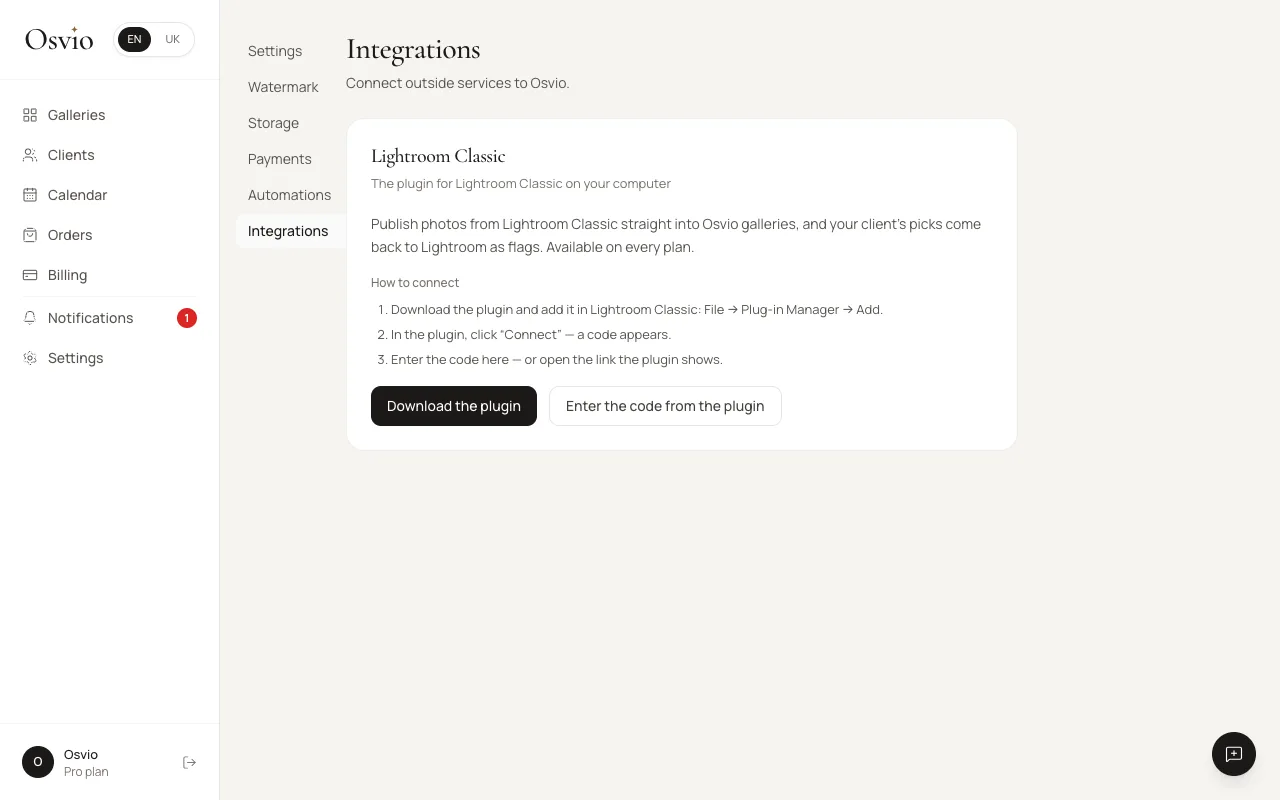
Check the connection
Settings → Integrations → Lightroom Classic shows:
- Connected and the Osvio account it's linked to.
- Plugin last active and Last gallery sync.
- Plugin version, and a note if a newer version is available.
Disconnect
Select Disconnect on the same screen and confirm. The plugin loses access to your account. Galleries and photos you've already published stay, and you can connect again later with a new code.