Customize a gallery's design
The design controls in the gallery editor change how a gallery looks to your clients without touching the photos. Everything you change shows up in the editor straight away.
The design toolbar
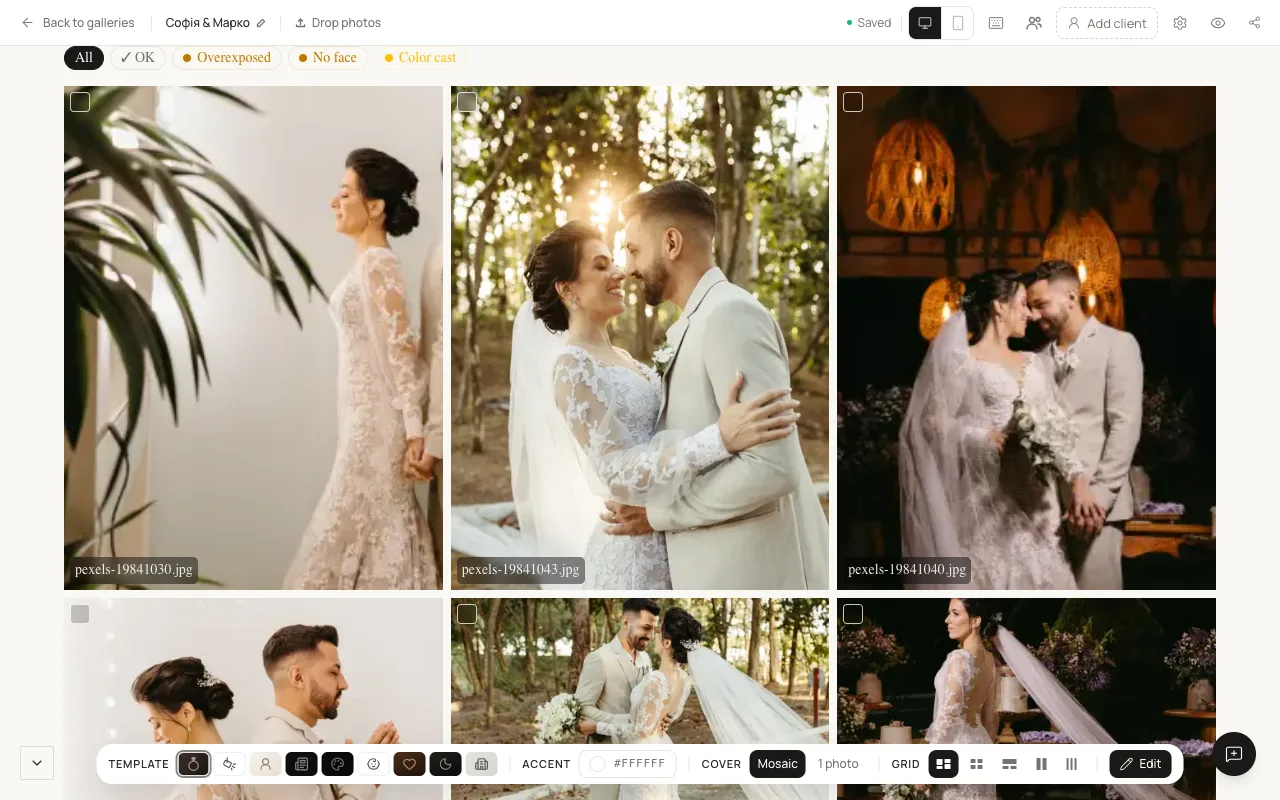
The toolbar has five controls: Template, Accent, Cover, Grid and Edit.
- Template switches the whole look. See Choose a template.
- Accent sets the accent color. Pick one that goes with your photos.
- Cover changes the cover at the top of the gallery (see below).
- Grid changes how photos are arranged: Masonry, Grid, Magazine, 2 Columns or 3 Columns. Love Story also has Editorial, and Boudoir always uses Sequence.
- Edit turns on photo edit mode, where you select photos to move, download or delete them.
At the top of the editor you can switch between Desktop and Mobile to check both.
Change the cover
- Select Cover.
-
Pick a cover style. The styles depend on the template:
Template Cover styles Wedding, Portrait Mosaic, 1 photo Commercial Editorial, Full-width Reportage Panel, Full screen Real estate Duo, Panorama Fine art Editorial, Cover Newborn Soft, Cozy Love Story Title Card, Editorial Marquee Boudoir has no cover choice.
-
To use a different photo, select Change photo. To adjust the crop, use Drag to crop.
Change the title and text
Click the headline directly in the template to edit it, or select Edit title at the top. You can also change the gallery's link here. See Create a gallery.
Show your logo, hide the Osvio copyright
Under Features in Gallery settings there is a Branding section:
- Show logo replaces the brand name with the gallery logo. Add your logo on your profile first. See Set up your profile.
- Hide Osvio copyright removes "Powered by Osvio" from the gallery. This needs the Standard plan or above.