Create your Osvio account
To create an account, open osvio.photos/register, answer a few short questions about your photography, and create your login. Osvio uses your answers to suggest a plan and tailor the default gallery style to your genre. It takes about two minutes.
Steps
-
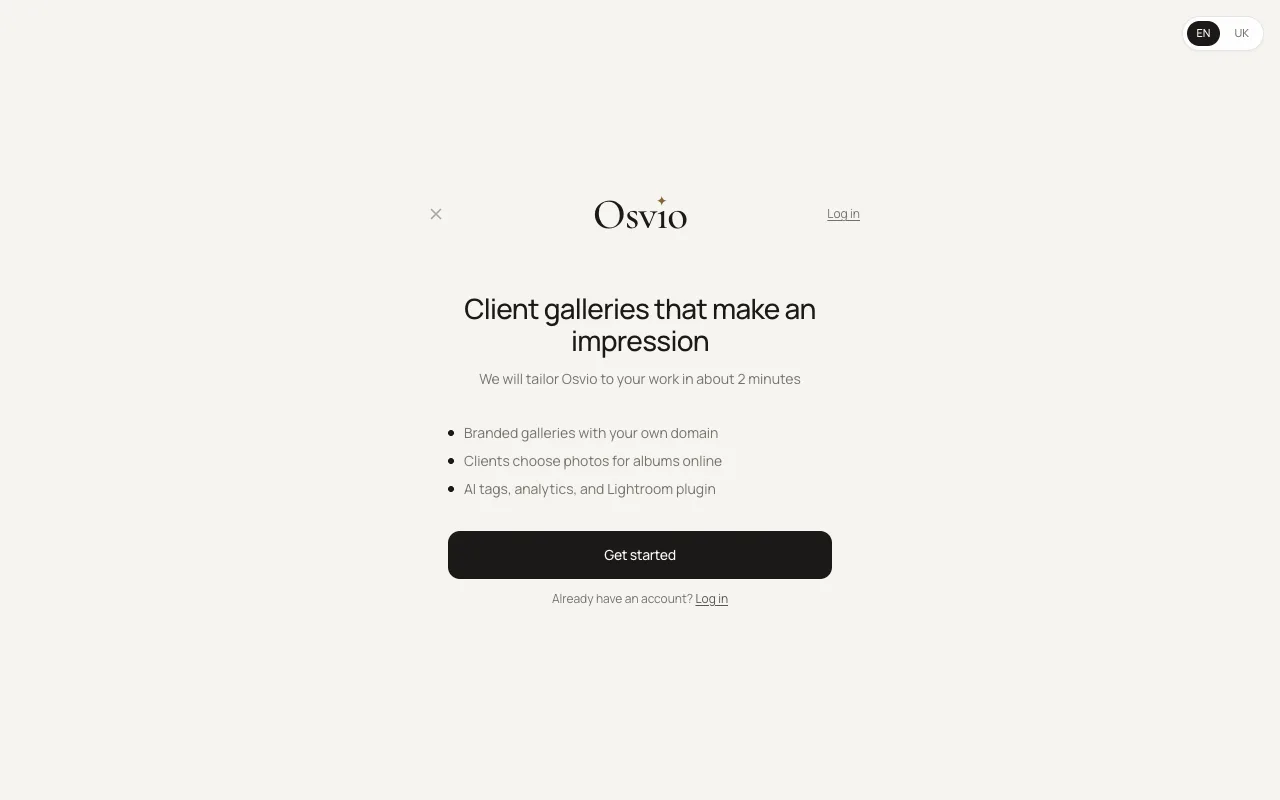
Open osvio.photos/register. The first screen says "Client galleries that make an impression". Select Get started. If you already have an account, select Log in instead.
 2. Choose your main specialization: Wedding, Love Story, Boudoir, Commercial, Portrait, Reportage, Real estate, Fine art, Newborn or Other. You can choose more than one specialization later in your profile settings.
3. Say how many shoots you handle per month: 1-3, 4-8, 9-15 or 15+. Osvio uses this to suggest a plan and storage limits. You won't see this question if you arrived with a plan already chosen.
4. Add some context. On the "A little context" screen, choose what you'd like to use Osvio for (optional, you can select several), which tool you use now, and which photo delivery services you use. The tool options are Lightroom Classic, Lightroom (cloud), Skylum Luminar Neo, Capture One, Darktable and Other.
5. Enter your name. Fill in Your name, and optionally Studio or brand name and Brand logo (JPEG, PNG, WebP or GIF). Osvio generates a subdomain for your account and checks that it's available; if it's taken, it suggests an alternative.
6. Create your account. Enter your email and a password of at least 8 characters, repeat the password, and tick I agree to the Terms of Use and Privacy Policy. Then select Create account. To sign up with Google instead, use the Continue with Google option on this screen.
7. Pick your plan. Osvio shows a plan it recommends based on your answers. Switch between Monthly and Yearly if you like, then select Continue with this plan, or select Choose this plan on a different one.
8. Continue. If you said you use Lightroom Classic, the next screen offers the Osvio plugin: "Publish straight from Lightroom". Otherwise you go straight to your galleries. You can skip the plugin screen with Skip, go to galleries.
Free trial
Paid plans start with a 7-day trial, and no payment is needed to begin it. The plan screen shows when the trial ends ("Free until" and a date). To keep access after the trial, add a payment method before it ends. The Free plan has no trial.
Signing up with Google
Signing up with Google works only if no Osvio account exists yet for that Google email. If one does, Osvio tells you to log in instead. Logging in with Google also works only for an existing account.
After you sign up
- Add your photo, logo and contact details: Set up your profile.
- Learn the layout of the app: Find your way around Osvio.
- Build a gallery: Create your first gallery.