Share a gallery with your client
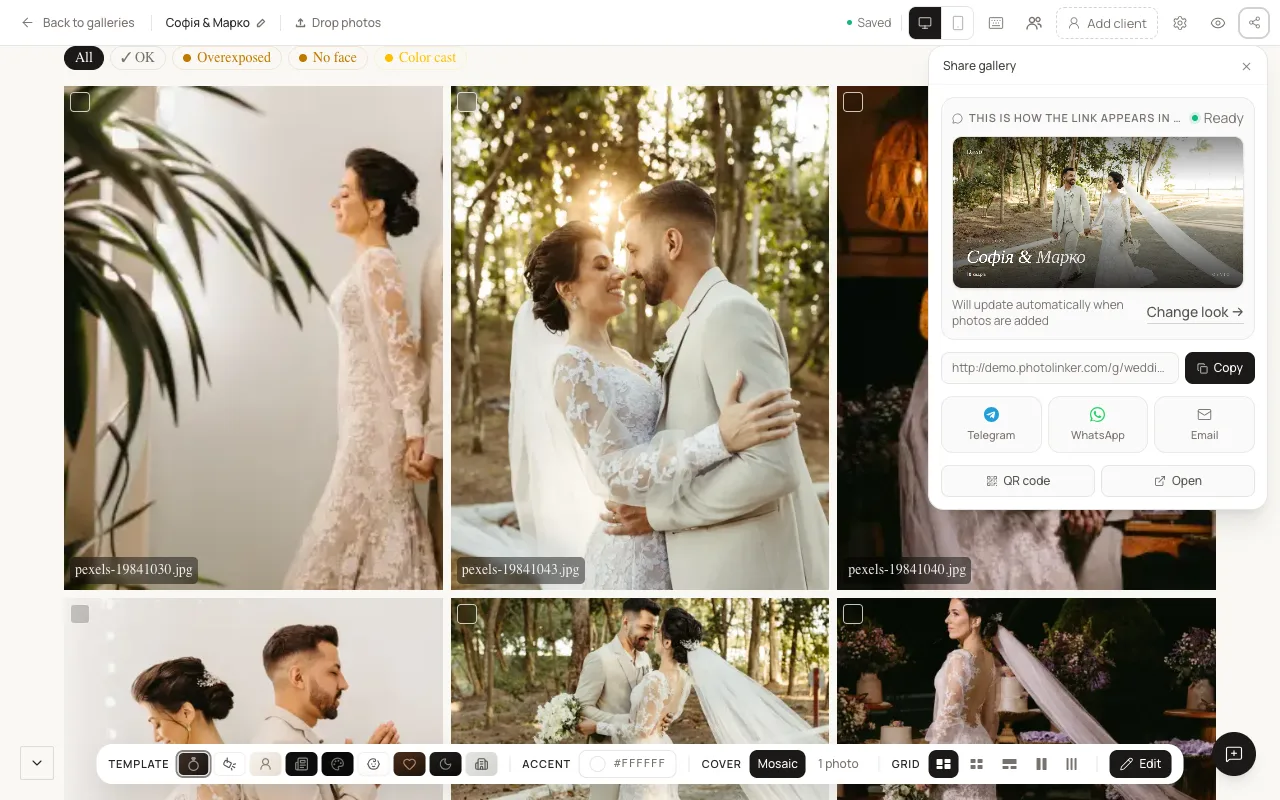
A gallery is shared with a link. You can copy it, scan it from a QR code, or send it straight into Telegram, WhatsApp or an email. Clients don't need an account to open it.
Share a gallery
- Open the gallery in the editor, or find it on the Galleries page.
- Select Share.
- In the Share gallery panel, choose what to do:
- Copy the link. The button says Copied when it's done.
- Show the QR code, which people can scan to open the gallery.
- Open the gallery in a new tab.
- Start a message in Telegram or WhatsApp, or an email, with the link already in it.
The email option opens your own mail app with a draft. Osvio doesn't send the email for you.
Check it before you send it
Select Open for client in the editor to see the gallery exactly as your client will. A banner reminds you that you're viewing as the photographer, and your own likes aren't saved.
Control the link preview
When you paste the link into a messenger, it can show a preview card. In the Share gallery panel, select Change look to open Choose a preview style:
- Gallery photo in the link preview: shows a photo from the gallery. Osvio picks a style that suits your template, and you can override it.
- No photo. Just the title and your brand.
- No preview. The messenger will show only the link.
Password-protected galleries and the Love Story and Boudoir templates default to no photo. If you switch on the photo preview for a protected gallery, Osvio warns you that people without the password would see a real photo.
Before you share
- Decide whether the gallery needs a password and when it should expire.
- Decide whether clients can download, and whether they can share individual photos (Photo sharing).
Clients can save the gallery to their account
Unless Visitor contact details is set to Don't ask, clients can choose to keep a gallery in their own Osvio account with an email link or Google, so they can find it again. See Client experience.