Choose your favorite photos
- For clients
You can pick your favorite photos with a heart, and send the list to your photographer. There are two separate marks, and they do different things.
Hearts and ticks
- Heart (favorite): for the photos you love. Your photographer receives these in real time, so they know which photos you'd like retouched.
- Tick (select): for photos you want to download or order prints of. This stays on your device.
The first time you open a gallery, a short guide called "How selecting works" explains this. Select Got it to close it.
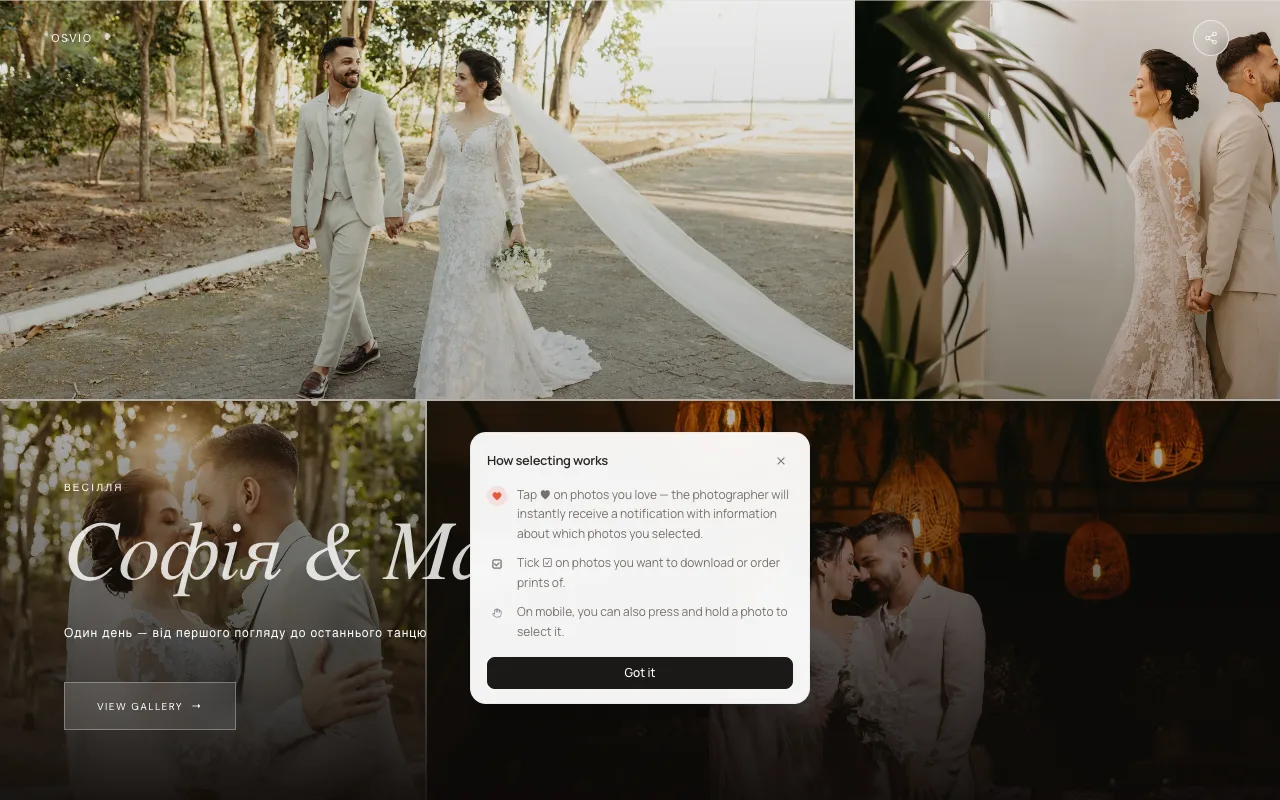
Mark favorites
- Open a photo.
- Select the heart ("Add to favorites"). Select it again to remove it ("Remove from favorites").
On a computer you can also press L while a photo is open.
Select photos to download or print
- Tick the photos you want, or press and hold a photo on your phone to select it.
- Download or order prints. Only the photos you ticked are included. See Download your photos.
On a computer, press S while a photo is open to select it.
Send your selection
When you've finished choosing:
- Select Send my selection.
- Enter your name (required if your photographer asks for contact details). Your email is optional.
- Send it. You'll see "Selection sent" with the number of photos your photographer received.
You can change your favorites and send again any time. If you haven't marked any photo yet, you'll be asked to "Like some photos with a heart first."
If there's a limit
Your photographer can limit how many photos you can pick. When you reach it you'll see "Limit reached", followed by the maximum number of photos you can pick for retouching. Remove a favorite to choose another.
Do I need an account?
No. Your favorites are remembered with a cookie on your device. If you save the gallery to your account, they're tied to your account instead.