Find your way around Osvio
Osvio doesn't have a separate dashboard. After you sign in, you land on Galleries, and everything else is reachable from the sidebar.
The sidebar
On a computer the sidebar is on the left. On a phone it's behind the menu button. From top to bottom:
- Galleries: all your galleries. This is where you land after signing in.
- Clients: your clients and shoots.
- Calendar: your shoots in a calendar view.
- Inbox: client messages from the channels you connect. When your plan doesn't include it, it's shown with a lock.
- Orders: orders that clients place for the services you offer in a gallery.
- Billing: your plan, saved cards and invoice details.
- Settings: your defaults and connections (see below).
The sidebar also has the notification bell. At the bottom, your name and plan open your profile, and Log out signs you out. The Language control switches between English and Ukrainian.
A Leave feedback button is available while you're signed in. See Contacting Osvio support.
The Galleries page
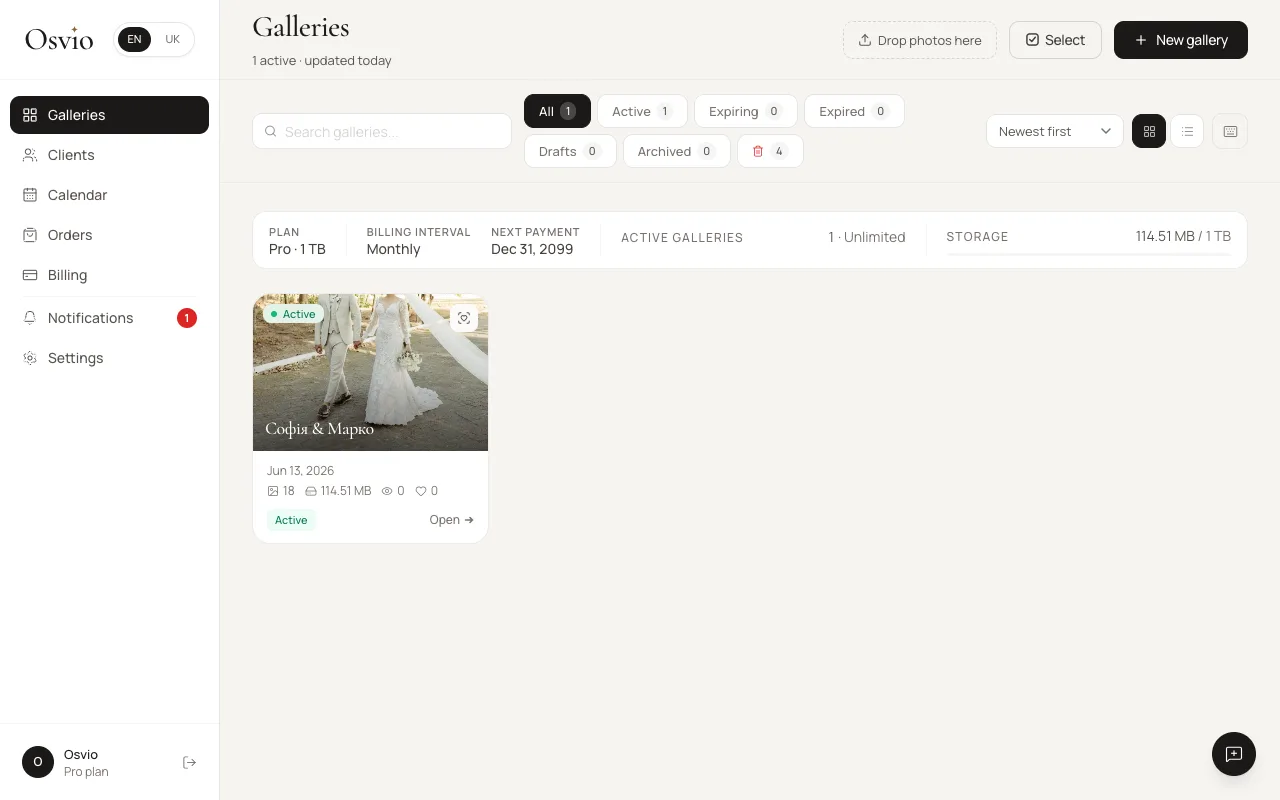
- At the top you can see your plan, your storage use and how many galleries are active.
- New gallery creates a gallery. You can also drop photos onto the page to create one straight away.
- Search galleries... finds a gallery by name.
- The filters narrow the list: All, Active, Expiring, Expired, Drafts and Archived. The trash-can icon at the end of the row shows galleries you've deleted.
- Sort by Newest first, Oldest first, By name, By photo count or By views, and switch between Grid and List view.
- Select lets you choose several galleries and act on them together.
Press ? to see the keyboard shortcuts for the gallery list, the gallery editor and the photo viewer.
Settings
Settings has its own set of tabs:
- Settings, titled "Gallery defaults": the defaults used when you create new galleries.
- Watermark: the watermark applied to downloads.
- Storage: connect your own cloud storage.
- Payments: connect the payment accounts clients pay into.
- Channels: connect messaging channels for the Inbox. This tab appears only for accounts with Inbox access.
- Automations
- Integrations: connect the Lightroom plugin.
Your profile and account
Your name and plan at the bottom of the sidebar open your profile, with the Profile, Contacts and Account tabs. See Set up your profile.