Gallery settings reference
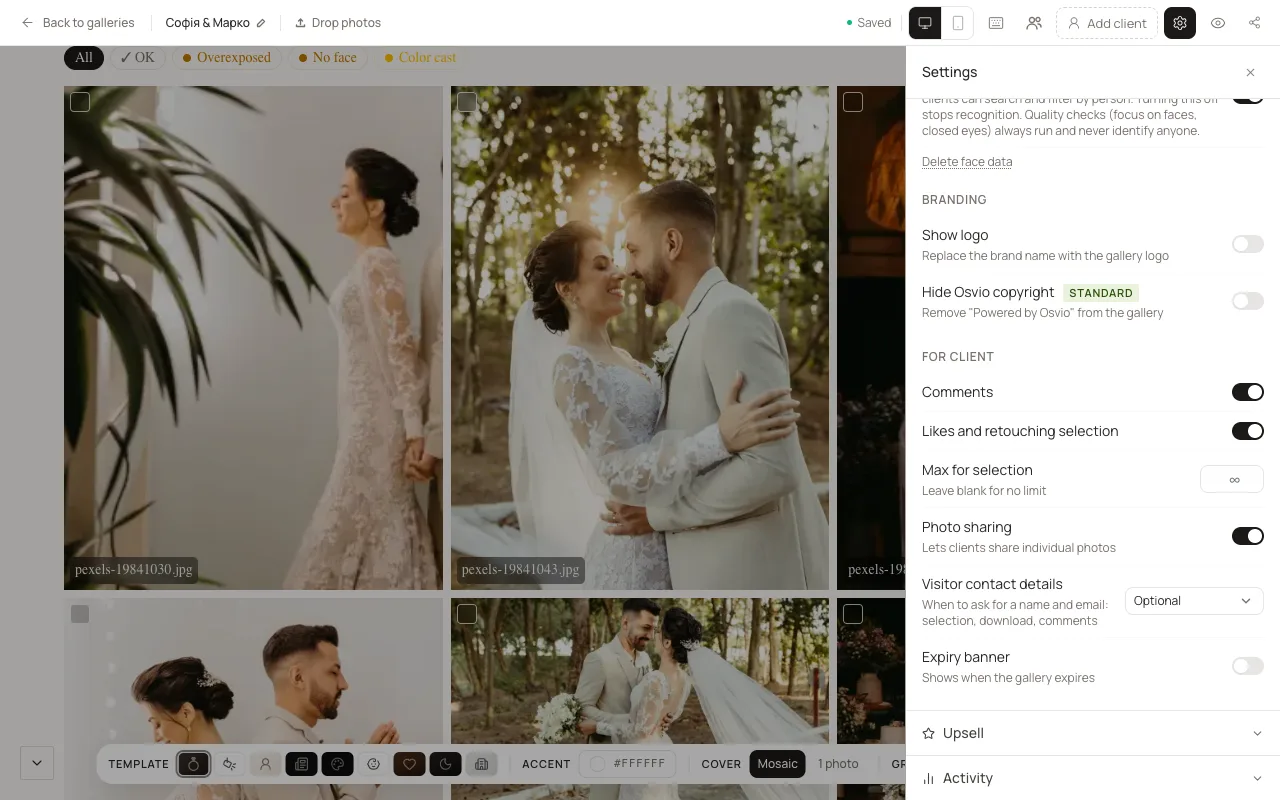
Open the gallery in the editor and select Gallery Settings. The panel has four sections: Access, Features, Upsell and Activity. The Memory Vault controls sit at the bottom of Access. New galleries start from your Gallery defaults.
Access
| Setting | What it does | Plan |
|---|---|---|
| Password | Clients must enter it to open the gallery. Leave empty for open access. See Password-protect a gallery. | All |
| Available until | The date the gallery stops being available to clients. See Set when a gallery expires. | Free: fixed at 30 days. Basic and above: you choose. |
| Allow downloads | Lets clients download photos. See Control downloads. | All |
| Watermark on download | Adds your watermark to photos clients download. Configure opens the watermark settings. | Basic and above |
| Screenshot protection | Covers photos when a screenshot shortcut is pressed on a computer, and blocks printing. Phones can't be protected. | All |
| Where originals are stored | Keep original files on Osvio or on your own storage. | Pro |
| Curated share links | Links clients create from a selection (Boudoir template). Revoke or Revoke all switches them off. | All |
Features
AI features
| Setting | What it does | Plan |
|---|---|---|
| AI scenes | Allows automatic scene detection and filtering. | Standard and above |
| Face filters | Lets Osvio recognize people so clients can filter by person. See Face filters. | Standard and above |
Branding
| Setting | What it does | Plan |
|---|---|---|
| Show logo | Replaces the brand name with the gallery logo. | All |
| Hide Osvio copyright | Removes "Powered by Osvio". | Standard and above |
For client
| Setting | What it does |
|---|---|
| Comments | Clients can leave comments on the gallery and on photos. |
| Likes and retouching selection | Clients can mark favorites with a heart. Max for selection limits how many they can pick; leave it blank for no limit. |
| Photo sharing | Lets clients share individual photos. |
| Visitor contact details | When to ask for a name and email: Don't ask, Optional or Required to download. |
| Expiry banner | Shows clients when the gallery expires. |
Upsell
Enable upsell block shows your list of services to clients, and Add service adds one (title, short description, category and price). This needs the Standard plan or above. See Store & orders.
Memory Vault
These settings are at the bottom of Access, under Memory Vault.
- Allow vault capture: clients can permanently preserve this gallery.
- License type: Personal (for personal viewing only), Commercial (allows commercial reuse) or Restricted (vault capture disabled).
If clients have already preserved the gallery, the panel tells you how many. Deleting the gallery doesn't remove their vaults. See Memory Vault.
Activity
Shows the gallery's Views, Downloads, Likes and Comments, and lets you reply to comments. See Client activity and comments.
Some settings are fixed by the template
Love Story and Boudoir start with stricter privacy settings, and Boudoir fixes several behaviors. See Choose a template.